Your PetPace collar keeps you connected to your pet’s health with minimal effort. Most of the time it works quietly in the background, but understanding how WiFi and connectivity behave helps you get the best performance and resolve issues quickly.
This guide explains how the collar uses WiFi and cellular networks, how to set up and reboot it, and simple troubleshooting steps to keep your device running smoothly.
How PetPace’s WiFi Works
The PetPace collar uses both WiFi and cellular connections to ensure continuous data capture and delivery:
- When WiFi is available, the collar connects automatically.
- If WiFi is not available, it switches to cellular.
- If neither connection is available, it stores data internally until a connection is restored.
The collar can store data for up to 7 days and will automatically upload stored data once it reconnects.
Why WiFi Matters
Although the collar can operate without WiFi, using WiFi whenever possible provides several benefits:
- Extends battery life (WiFi consumes less power than cellular).
- Allows important firmware and app updates to install promptly.
- Enables faster and more consistent data uploads.
Connecting Your Collar to WiFi
Setting up WiFi is straightforward. A few details make the process reliable and quick.
Before You Start
Make sure of the following before beginning setup:
- You are using a 2.4 GHz WiFi network.
- Your phone’s Bluetooth is turned on.
- The collar remains on the charger for the entire setup.
- Your phone, the collar, and the router are close together during setup.
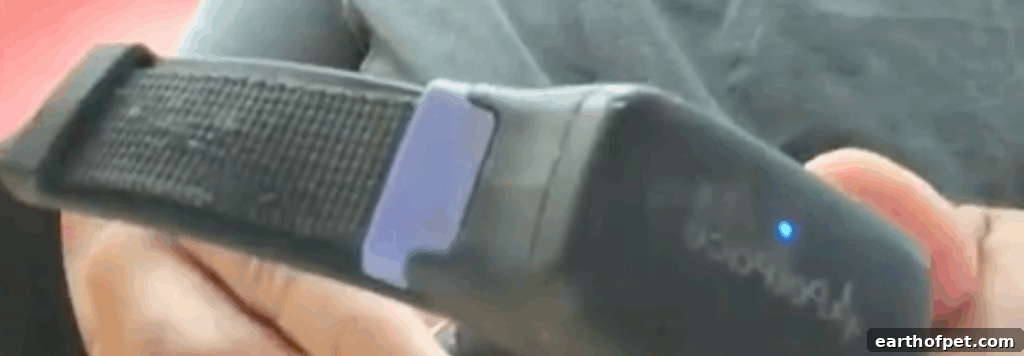
During setup a blinking blue light indicates the collar is ready to connect.
How to Connect
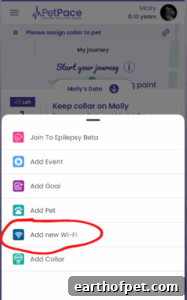
- Open the PetPace app on your phone.
- Follow the app’s on-screen instructions to add a WiFi network.
- Keep the collar on the charger while connecting.
- Remain close to your router until the setup completes.
After the collar connects, it will remember the network and reconnect automatically. You can save up to 5 WiFi networks per collar.
If you prefer a visual walkthrough, there is a short step-by-step video showing how to reboot and reconnect the collar.
How to Reboot Your PetPace Collar
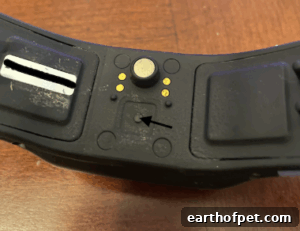
A reboot often fixes connection issues quickly. To reboot the collar:
- Press and hold the button on the back of the collar.
- Hold for about 20–25 seconds.
- Wait for a long green blink to appear.
- Release the button.
After rebooting, place the collar on the charger for 5–10 minutes before returning to normal use. This resolves most connection hiccups.
Quick Fixes if You Need Them
The collar is designed to reconnect automatically, but if you need to troubleshoot, try these targeted steps.
Collar Not Finding WiFi
- Ensure Bluetooth is enabled on your phone.
- Keep the collar close to the router during setup.
- Verify you are connecting to a 2.4 GHz network.
- Place the collar on the charger before attempting to connect.
Connection Didn’t Go Through
- Try a quick reboot (see reboot steps above).
- After rebooting, leave the collar on the charger for a few minutes before retrying.
- Avoid deleting and re-adding the collar unless necessary, as this can add extra steps.
Networks with Extra Login Steps
Some public or enterprise networks require additional login steps (username, captive portal, or extra authentication). PetPace currently supports standard WiFi networks that require only:
- Network name (SSID)
- Password
Workaround: use a mobile hotspot (2.4 GHz) to connect the collar and sync data when you can’t use a standard network.
Outside WiFi Range
- The collar will automatically switch to a cellular connection when WiFi is unavailable.
- If neither WiFi nor cellular is available, it will store data and upload it later when a connection returns.
Data Not Showing Right Away
Your pet’s metrics continue to be recorded on the collar. Once it reconnects to WiFi or cellular, it will automatically upload the stored data—no action required.
Do You Need WiFi on Your Phone?
No. Your phone does not need to remain connected to WiFi. The PetPace collar independently sends data using WiFi when available and cellular when WiFi is not available.
Pro Tips for a Smooth Experience
- Save at least one reliable home WiFi network on the collar.
- Use WiFi whenever possible to conserve battery life.
- Only remove saved networks when necessary to avoid reconfiguring the collar.
- If something seems off, start with a quick reboot and charger cycle.
Stay Connected, Stay Informed
PetPace is built to work quietly in the background so you can focus on your pet. In most cases a strong WiFi connection and a quick reboot are all that’s needed to restore full functionality.
FAQs
Does the PetPace collar work without WiFi?
Yes. The collar will automatically switch to cellular if WiFi isn’t available.
Can the PetPace collar connect to multiple WiFi networks?
Yes. You can save up to 5 WiFi networks, and the collar will connect automatically based on proximity.
Will I lose data if the PetPace collar disconnects?
No. The collar stores data for up to 7 days and uploads it once it reconnects.
If you still experience issues with your WiFi connection or need further assistance, contact our support team: [email protected]